Pools and shapes
Deck around a pool, snapping and guides
5 min read
Goal: Add a deck in one tap and keep your lines neat.
Steps
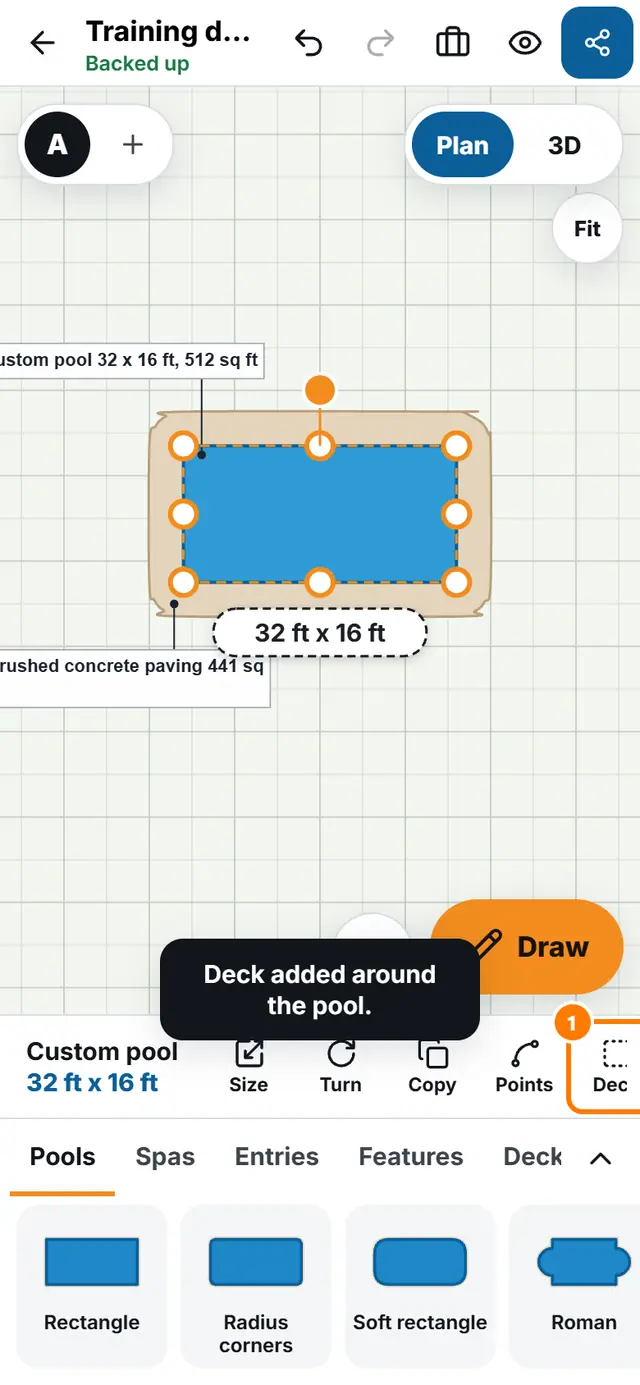
- Tap the pool, then tap Deck. A deck is added around it. Tap the deck to move or edit it like any other piece.
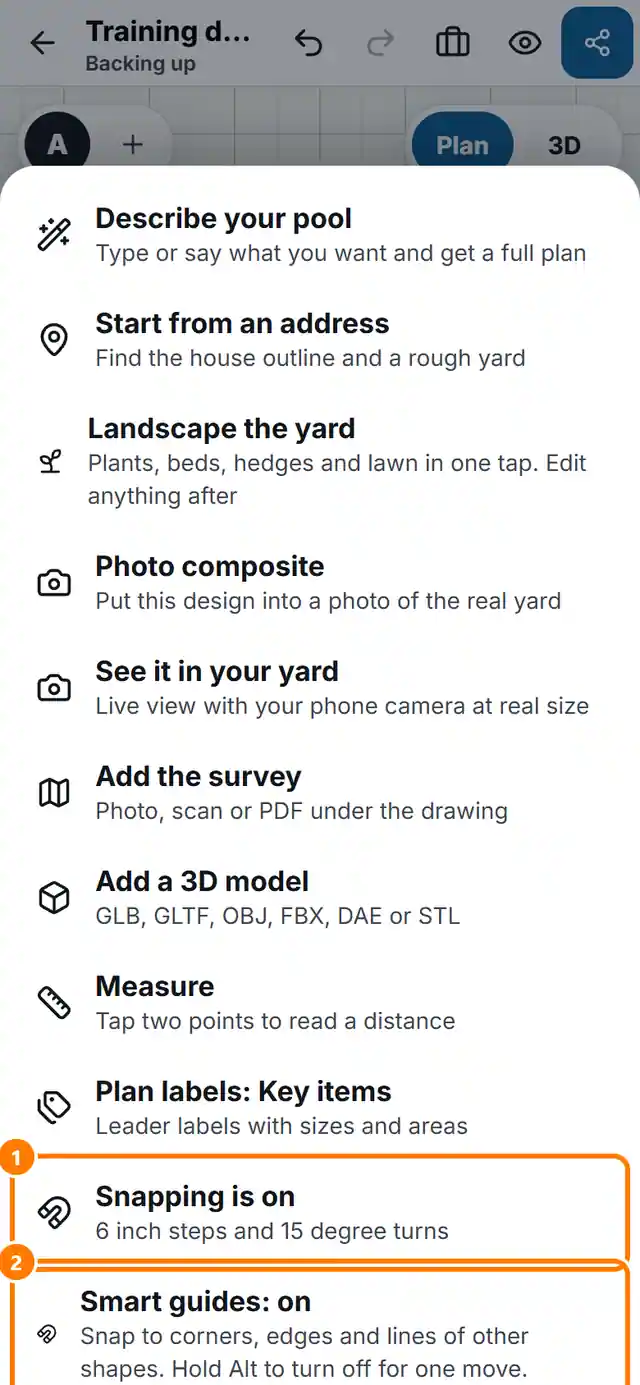
- Open More tools. The snapping entry says Snapping is on: moves jump in 6 inch steps and turns in 15 degree steps. Tap it to turn it off.
- Smart guides: on snaps a piece to the endpoints, midpoints, edges and lines of other shapes. A small labelled dot shows what it snapped to.
- Hold Alt on a computer to switch the guides off for one move.