Deliver it
Plan labels and dimensions
3 min read
Goal: Put the right amount of text on the plan.
Steps
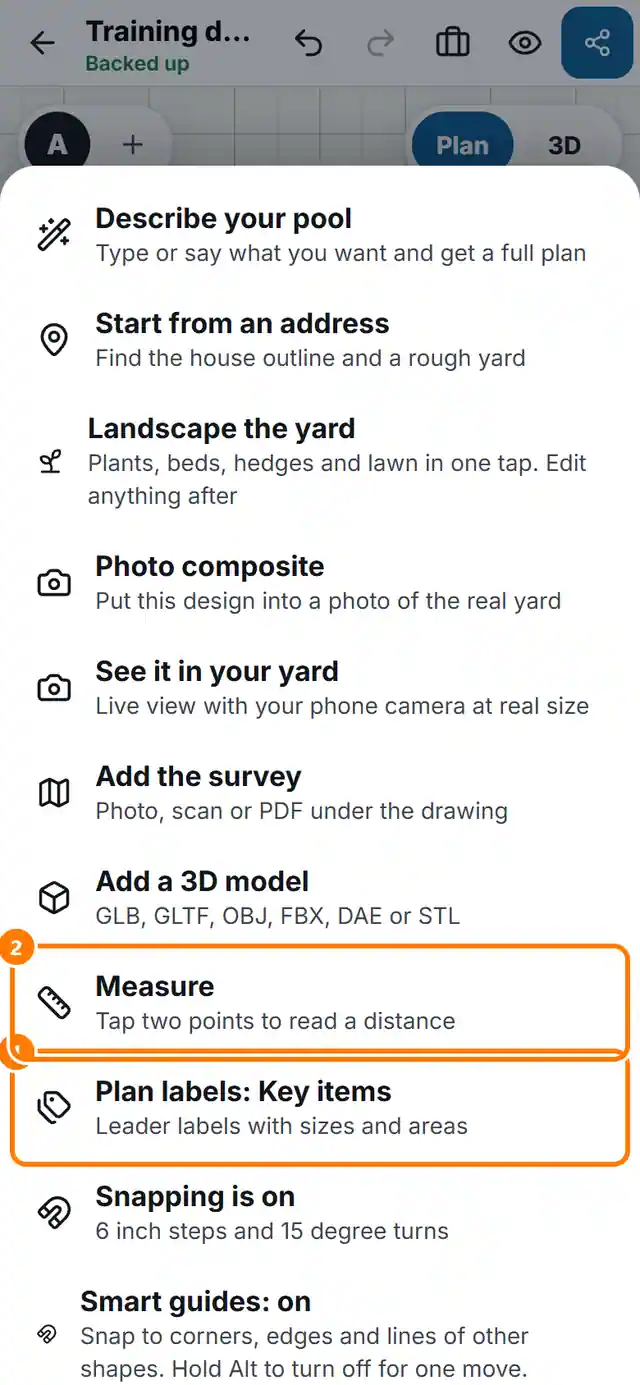
- Tap More tools.
- Tap the Plan labels entry. It cycles through the levels, such as Key items. Leader labels show sizes and areas.
- Tap Measure, then tap two points to read a distance.
- In the Send sheet, switch Show sizes and distances on or off for the PDF.
- In 3D, open Views and tap Show sizes.