Show it
Compare options and before and after
5 min read
Goal: Show two ideas side by side, or the pool in the real yard photo.
Steps
- To compare two ideas, add a second option with the plus button next to the option letters.
- Tap More tools, then Compare options. Pick the Left side and Right side and drag across the picture.
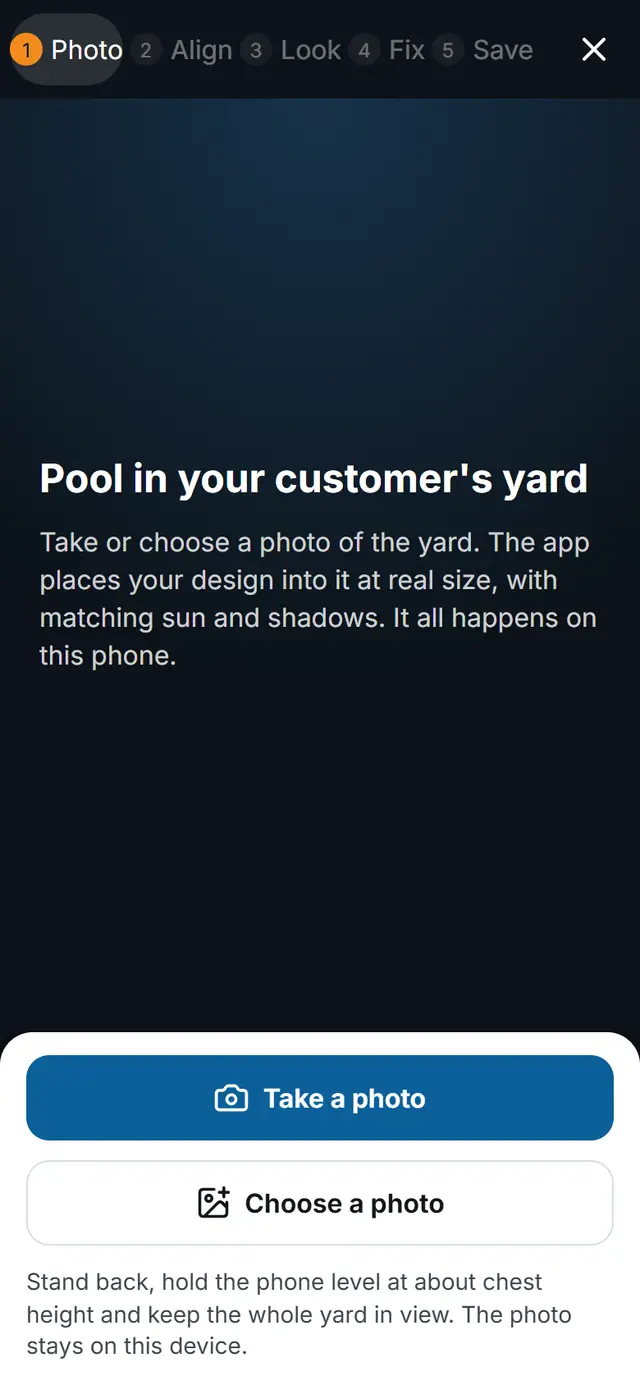
- For the yard photo, tap More tools, then Photo composite.
- Tap Choose a photo. Stand back and keep the whole yard in view when you take it.
- Go through the steps: Photo, Align, Look, Fix, Save. Drag the yellow line to the horizon and enter the camera height honestly.
- Drag across the picture to compare before and after, then Save to this design.